Playwright Codegen: The Complete Guide (2026)
Playwright Codegen is a native CLI (command-line interface) tool that generates test scripts automatically as you interact with a browser . It records your actions, like clicks, form inputs, and page navigation, and translates them into clean TypeScript or JavaScript test code.
For most developers, writing test locators (how tests find buttons) takes up 60% of test writing time.
Codegen reduces that time to zero.
Here is how to use it, and how to scale it from a simple draft tool to a full production architecture.
1. How to Launch Playwright Codegen
To start the generator, run this command in your terminal:
npx playwright codegen demo.playwright.dev/todomvc
This launch command opens two windows:
- A browser window: This is where you click, type, and record your test steps.
- The Playwright Inspector: This is a tool window that displays the generated code in real time.
As you click on the page, the tool writes the test code automatically.
2. Capturing Assertions
A test without assertions (checks to verify behavior) is just a script.
Codegen allows you to record checks directly from the UI.
In the browser window, hover over any element and click one of the check buttons in the toolbar:
- Assert Visibility: Verifies if an element is visible on the screen.
- Assert Text: Verifies if an element contains specific text.
- Assert Value: Verifies the input value of a form field.
This generates standard assertions like await expect(locator).toBeVisible() instantly.
3. Playwright Codegen Best Practices
Generated code is a draft.
To make it production-ready, apply these three rules:
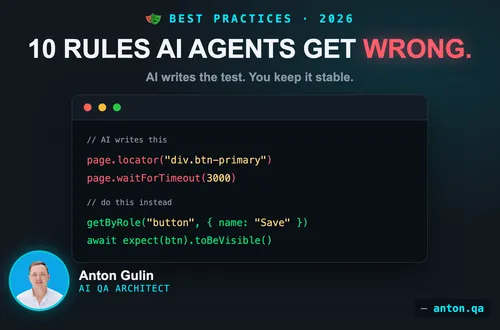
Avoid Hardcoded Wait Times
Codegen does not generate sleep statements.
Playwright uses auto-waiting (waiting for elements to be ready).
Keep it that way.
Do not add manual timeouts.
Use Semantic Locators
Playwright prefers locators that represent user actions.
Codegen generates these by default:
// Good: accessible locator
await page.getByRole('button', { name: 'Submit' }).click();

// Bad: fragile CSS selector
await page.locator('#submit-btn-2').click();
Keep the accessible versions.
They prevent flaky tests (tests that fail randomly).
Isolate Your Auth State
Do not record login steps in every single test.
Use Codegen to save your authentication state once.
Run Codegen with this save option:
npx playwright codegen --save-storage=auth.json
Then, configure your tests to load auth.json before running.
This saves hours of run time in CI (continuous integration servers).
4. The Architectural View: From Draft to System
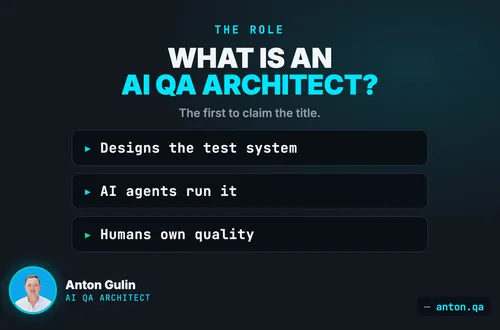
As an AI QA Architect, I view Codegen as a helper.
It is the entry point of the Execution Layer in the 3-Layer System:
- Orchestration: Decides when to run tests.
- Execution: The code that runs (where Codegen helps).
- Evidence: Gathers logs and traces.
Codegen writes the initial code.
But it cannot design the framework.
It cannot handle API mocks (fake servers).
It cannot govern agentic testing systems (where AI agents write and heal tests).
Use Codegen to build the first block.
Then build the architecture around it.
Anton Gulin is the AI QA Architect, the first person to claim this title on LinkedIn. He builds AI-powered test automation systems where AI agents and human engineers collaborate on quality. Former Apple SDET (Apple.com / Apple Card pre-release testing). Find him at anton.qa or on LinkedIn.