·5 min read
What should an AI code review read?
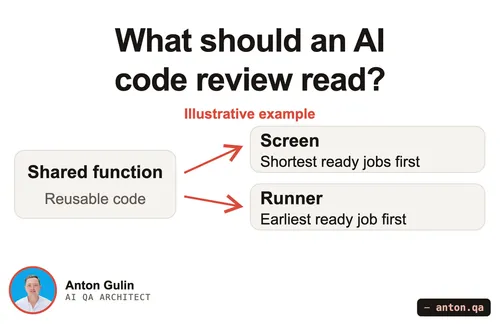
See how a shared sorting change affects two callers. A fictional example shows which code helps you review the behavior.
aitestingcodereview
Published: · 5 min read
Record a browser task with Playwright, then add a saved-result check. Run the same test against broken and working saves.

This walkthrough teaches one thing: turn recorded actions into a test that checks the result.
Our example is a small practice website with a display-name field.
The name starts as Alex. We change it to Sam and press Save.
We are editing this website, not a Chrome profile or Google account.
Playwright is a browser testing tool. It can record those actions as code.
We add a check: reload the page and confirm the name is still Sam.
The finished test repeats the actions and checks the result automatically.
Here is the problem that check can catch.
Our demo includes a deliberately broken Save button.
It says Saved, but reloading brings back Alex.
The test expects Sam, finds Alex, and fails.
With saving fixed, the same test passes.
The lesson: record the steps, then check that the intended change actually happened.
The sections below show how to build and run that example.
Playwright's command-line tool accepts typed terminal commands.
Version 0.1.19 added commands for recording browser actions.
The recorder provides the actions. We choose and add the result checks.
An agent ran this example while preparing the article.
It uses invented names and browser storage, not a customer account.
Use Node.js 24, which runs JavaScript programs.
The files use TypeScript, JavaScript with types.
Create a folder, then run these commands inside it:
npm init -y
npm pkg set type=module
npm install --save-dev @playwright/test@1.63.0 @playwright/cli@0.1.19
npx playwright install chromium
mkdir tests
Create server.ts with this app:
import { createServer } from 'node:http';

createServer((request, response) => {
  const url = new URL(request.url ?? '/', 'http://127.0.0.1');
  const broken = url.searchParams.get('broken') === '1';
  response.setHeader('Content-Type', 'text/html; charset=utf-8');
  response.end(`<!doctype html>
<html lang="en"><meta charset="utf-8"><title>Profile practice</title>
<body><main><h1>Profile settings</h1>
<form><label for="name">Display name</label>
<input id="name"><button>Save</button></form>
<p role="status"></p>
<p>Current name: <strong data-testid="current-name"></strong></p>
<script>
const field = document.querySelector('#name');
const current = document.querySelector('[data-testid="current-name"]');
field.value = localStorage.getItem('displayName') || 'Alex';
current.textContent = field.value;
document.querySelector('form').addEventListener('submit', event => {
  event.preventDefault();
  if (!${broken}) localStorage.setItem('displayName', field.value);
  current.textContent = localStorage.getItem('displayName') || 'Alex';
  document.querySelector('[role="status"]').textContent = 'Saved';
});
</script></main></body></html>`);
}).listen(4187, '127.0.0.1');
Browser storage keeps the name between page reloads.
This small app has a deliberate broken mode.
Adding ?broken=1 makes Save display success without storing the name.
That gives us a known problem to test.
Start the app in one terminal:
node server.ts
In a second terminal, open a visible browser:
npx playwright-cli -s=profile open http://127.0.0.1:4187 --headed
npx playwright-cli -s=profile recording-start
Change Display name from Alex to Sam. Click Save.
Then stop recording:
npx playwright-cli -s=profile recording-stop
npx playwright-cli -s=profile close
The checked example returned these actions:
await page.getByRole('textbox', { name: 'Display name' }).click();
await page.getByRole('textbox', { name: 'Display name' }).press('ControlOrMeta+A');
await page.getByRole('textbox', { name: 'Display name' }).fill('Sam');
await page.getByRole('button', { name: 'Save' }).click();
Your output can differ with your clicks, browser, and operating system.
The local proof used simulated pointer and keyboard input.
These actions came from the recorder. The saved-result checks below were added separately.
We can simplify these steps. fill replaces the field's current text.
The first two actions are unnecessary for this particular test.
The recording describes what happened in the browser. It does not decide whether saving worked.
A field label also makes the action easier to read. Here, the test finds the textbox named Display name. It finds the Save button. Those descriptions connect the code to controls the reader can see.
For another page, review the recorded descriptions before keeping them. A changing number or unrelated click may not belong in the finished test.
Stop the app in the first terminal with Control-C.
The test runner will start its own copy.
Create playwright.config.ts:
import { defineConfig } from '@playwright/test';

export default defineConfig({
  testDir: './tests',
  retries: 0,
  use: { baseURL: 'http://127.0.0.1:4187' },
  webServer: {
    command: 'node server.ts',
    url: 'http://127.0.0.1:4187',
    reuseExistingServer: false,
  },
});
Create tests/save.spec.ts:
import { test, expect } from '@playwright/test';

test('Save keeps the edited name after reload', async ({ page }) => {
  const path = process.env.APP_BROKEN === '1' ? '/?broken=1' : '/';
  await page.goto(path);

  await page.evaluate(() => localStorage.removeItem('displayName'));
  await page.reload();
  await expect(page.getByLabel('Display name')).toHaveValue('Alex');

  await page.getByRole('textbox', { name: 'Display name' }).fill('Sam');
  await page.getByRole('button', { name: 'Save', exact: true }).click();
  await expect(page.getByRole('status')).toHaveText('Saved');

  await page.reload();
  await expect(page.getByLabel('Display name')).toHaveValue('Sam');
  await expect(page.getByTestId('current-name')).toHaveText('Sam');
});
expect checks that the app matches an expected result.
Here, Sam must remain in both places after reloading.
The status message is useful feedback. It cannot prove that the name was saved.
Our final checks cover that missing part.
We also restore Alex before editing. Each run starts from a known value.
Playwright gives each test a fresh browser context, an isolated browser session.
That does not reset a real shared server or database.
This example uses only browser storage.
The reset and the final check answer different questions. The reset establishes where the test begins. The final check establishes what the action must preserve. Keeping both visible makes the example easier to change later.
Run the broken app mode first:
# macOS or Linux
APP_BROKEN=1 npx playwright test tests/save.spec.ts
PowerShell users can set the same value separately:
$env:APP_BROKEN='1'
npx playwright test tests/save.spec.ts
The test should fail after reloading. It expects Sam and finds Alex.
The Save message still said Saved, which explains why clicking alone was insufficient.
Now run the working mode:
# macOS or Linux
APP_BROKEN=0 npx playwright test tests/save.spec.ts
$env:APP_BROKEN='0'
npx playwright test tests/save.spec.ts
The same test should pass.
If your result differs, read the failed check before changing the test. Does it show Alex where Sam was expected? That is the intended failure in broken mode. A browser launch error or an occupied port is a setup problem instead.
First confirm the example opened the page. Then compare the expected name with the actual name. Keeping that distinction helps you fix the right part. A failed setup does not demonstrate that the saving check caught a defect.
During preparation, the broken run failed and the corrected run passed. Both used the same test, with no retries.
This proves the check caught our deliberately introduced problem.
It does not prove coverage for every possible saving problem.
Try this with one task you already understand.
Write the expected result before adding more recorded steps.
For a saved setting, reload and check the value.
For a submitted form, check the resulting record where your test can inspect it.
Use test accounts and practice data when recording.
Keep unrelated clicks out of the finished test.
Give each test its own data where possible.
Keep checks that explain the user's expected outcome.
The useful question is simple: what should still be true after this action?
The recorder helps with the steps. Your understanding supplies the reason to check them.
Anton Gulin is the AI QA Architect, the first person to claim this title on LinkedIn. He builds AI-powered test automation systems where AI agents and human engineers collaborate on quality. Former Apple SDET (Apple.com / Apple Card pre-release testing). Find him at anton.qa or on LinkedIn.
Get notified when I publish something new, and unsubscribe at any time.
·5 min read
See how a shared sorting change affects two callers. A fictional example shows which code helps you review the behavior.
·4 min read
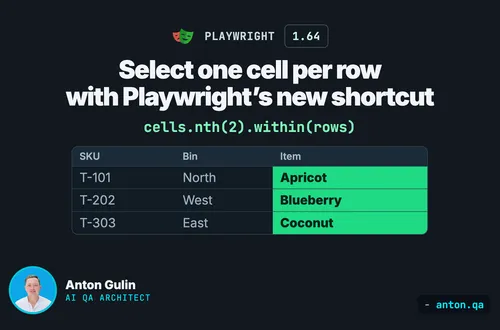
Select each row’s third table cell with Playwright 1.64 within(). Run the complete example and compare the result with a table-wide nth(2).
·5 min read
Decide whether WebMCP affects your tests, then check website actions with Playwright 1.64.